

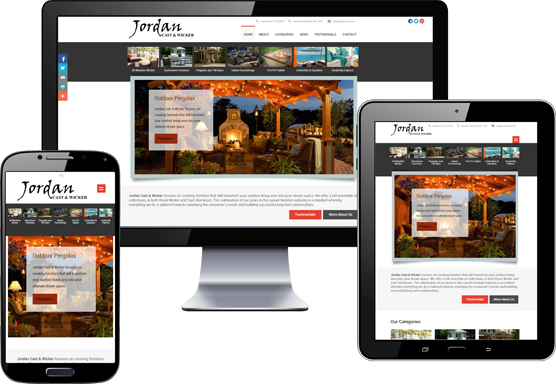
SynergyPro Solutions Homepage
  Our Home Page View our recent work Web Design Services in Hamilton Internet Marketing In Hamilton Discover our desktop software Contact Us Today!

Content Management Systems

If you've never heard of the term CMS let us explain the basics to you now... CMS stands for Content Management System and it is usually discussed in relation to a corporate website. They can be implemented on any existing site but the larger the site the more involved it becomes.

The best way to approach content management is to build the system from the ground up, to design the site around the system so that menus and other interface items can be incorporated from the beginning. Don't get us wrong though - any existing site can be converted to house a CMS but depending on the programming and existing structure there may be limitations.

Now, to continue with the explanation, content management essentially means the updating of your web content. A CMS gives a company access to their own site, allowing them to open any page on their site and change what's there... update News & Events, add Department Specials, display Employment Opportunities, upload Testimonials, etc...

No more waiting for your website designer to get to your requests - next week - and no more constant invoicing for the smallest of changes. You get control of your own site and the ability to make any changes you want, whenever you want and from where ever you happen to be.

Say you're on the road at a Trade Show and need to make some adjustments to the copy on your Product page... A CMS lets you login right from the Trade Show floor and make those changes instantly.

It sounds a little like the Database and Inventory Management Systems we talked about on previous pages, doesn't it? The only difference is that the database houses your inventory, whereas the CMS would deal with the rest of your website.

Think of how powerful a tool a database driven CMS website would be... Finally you would have complete control over your website from front to back. You could instantly update your offerings to the world, from anywhere, anytime!

The following is a case study on the power of a CMS. We are using an existing client to showcase our basic system and we'll show you step by step how certain types of updates would work. And , of course, if any of this interests you please don't hesitate to give us a call or visit our Contact Us page and fill out the Quick Quote form for a lightening fast response.


CMS Case Study [HaltonHonda.com]

For our database driven website example we'll use the property RVHotlineCanada.com. The following screens outline the various 'views' of the data contained within the database. This example is of a relational database model and it allows the end user to access all aspects of the members' businesses - like the recreational vehicles for sale by each dealership, their service centers and storage facilities as well as the dealership details like their locations, hours of operation, email addresses and web addresses. All this data is stored in one large database and can be accessed in a variety of ways...


A. Management Console

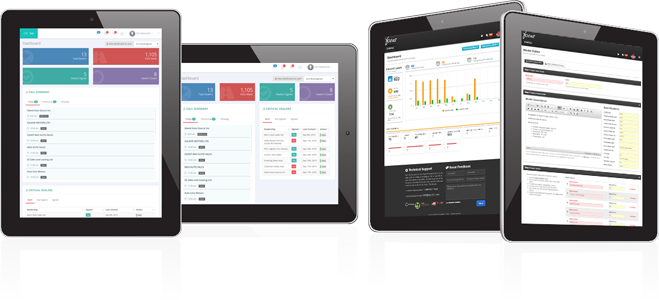
Users access the CMS through any web browser, enter their ID and Password, and begin their session at the Management Console.

There are a number of functions that can be performed from here but for this example the user clicks - "List My Pages" - to access their page or module for updating.

Content Management System screen A  


B. Page/Module Listings

Scrolling down the list to the desired item the user can either choose to "Edit" or "Preview" the page or module.

In this example we'll say the user wants to edit some text in the module - "Welcome Message" from above.

Content Management System screen B  


C. Edit Module Screen

This is the heart of the system and works just like Microsoft Word or any other text editor. To change a paragraph or a sentance the user simply selects the text in question and types in the update.

To make a link the user can select a word and click the link button in the tool bar to enter the destination URL. This particular editor allows users to insert images, Flash files and video as well, but in this case text is all the system is setup to edit.

Once corrections or updates are made the user simply clicks "Save" and the changes are sent to the website instantly.

Any module from the site can be opened here for editing, for instance the examples above - the "Parts & Service" specials and the "Body Shop" specials.

Content Management System screen C  


D. News & Events Database

From anywhere in the system the user can click "Return To Menu" and get back to the Management Console.

To add a News article or a company Event clicking the "News & Events" button will open this screen. This is a listing of all current items and from here the user can add, edit or delete items from the database with the click of a button.

Content Management System screen D  


E. Edit News Items

Similar to the text editor for modules the News & Events editor works by utilizing the various "tools" in the tool bar. The difference is that this feature uses a database to store items - so there are a few additional fields here used to organize the listings. Date, type, links, titles, descriptions and headings are all extra fields in this feature.

The text editor works the same way as the module editor above. With it you can add anything that a webpage can display - like images, links, buttons, animation files, etc.

This example shows the user adding images to their article.

Content Management System screen E  


Return to our Web Services page. top of page


As simple as it was this explanation encompasses all there really is to know about how a CMS works. If you or your company are in the market for a system like this and wish to do your own website updates you can contact us and we'll help you devise an upgrade strategy. We look forward to hearing from you.